Account sign-in and security
How to sign in to ADO Pilot, enroll multi-factor authentication, manage trusted devices, and what step-up re-authentication means for sensitive actions.
Last updated
Your ADO Pilot account — the one you use at adopilot.dev, separate from your Azure DevOps organization — has its own sign-in methods, an optional multi-factor authentication (MFA) layer, and a "step-up" re-authentication check that guards a short list of sensitive actions. This page covers all three.
Signing in
The sign-in screen at adopilot.dev/login (and the Sign In tab on the landing page) offers up to three doors:
- Email and password. The always-available default. New accounts require a password of at least 12 characters that isn't one of a small set of extremely common passwords (
password123,qwerty123, and similar). - A one-time sign-in link or code. Enter your email and choose email me a sign-in link or email me a code instead of typing a password. Either one is sent to your inbox; the link or code is single-use — available when passwordless sign-in is turned on.
- Sign in with Microsoft. A Sign in with Microsoft button signs you in (or, for a new account, creates one) using your organization's Microsoft Entra ID. You can also link an existing password-based account to a Microsoft identity — or remove that link — from Settings → Security; both linking and unlinking require a step-up re-confirmation (see below).
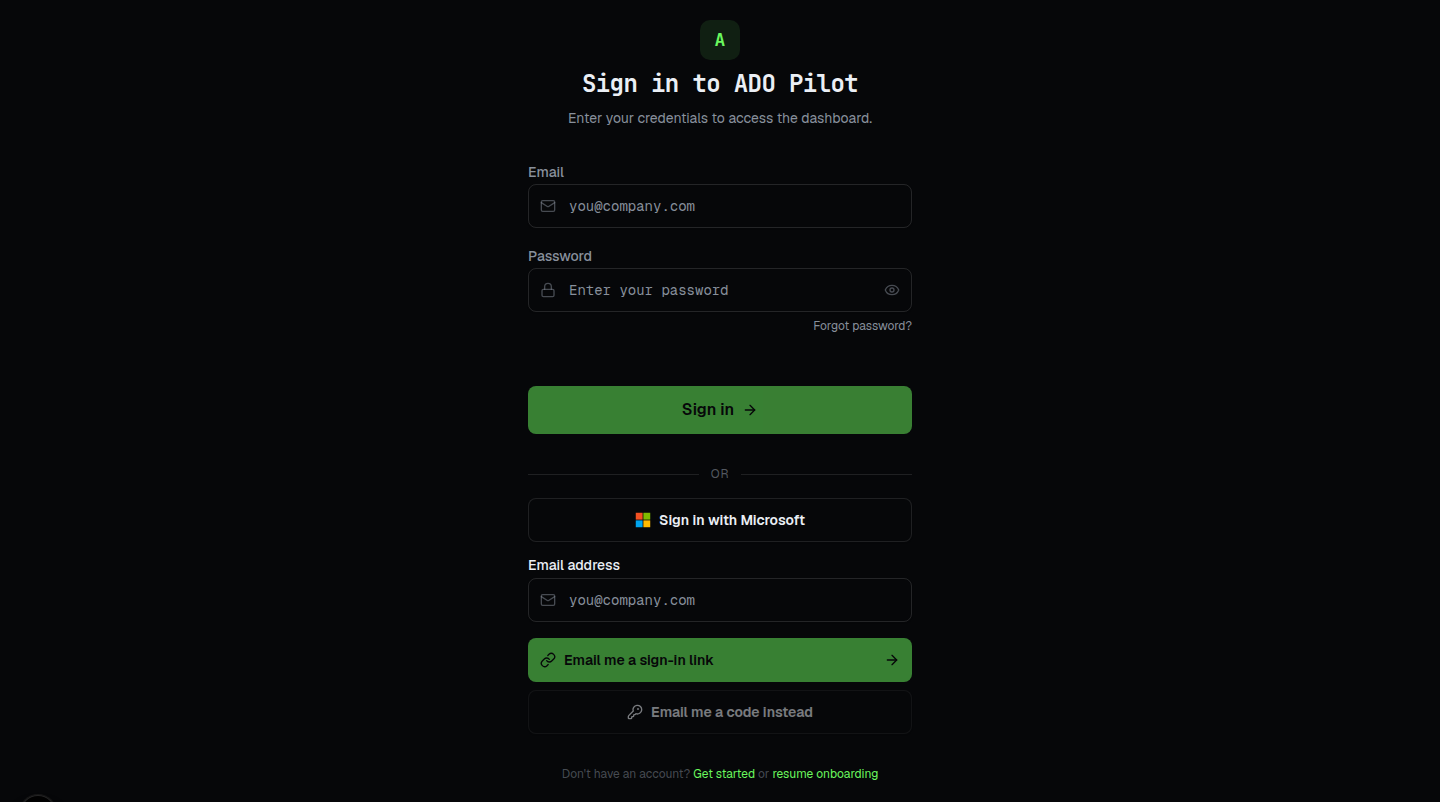
Forgot your password? Use Forgot password on the sign-in screen — it emails a reset link the same way the one-time sign-in code does, and doesn't reveal whether an account exists for that address.
Multi-factor authentication (MFA)
ADO Pilot supports authenticator-app based MFA (TOTP — the same 6-digit, 30-second codes used by apps like Microsoft Authenticator, Google Authenticator, or 1Password). Enrolling is optional, for both regular team members and org admins. There's one asymmetry worth knowing: once an org admin enrolls, MFA can't be turned back off while they hold the admin role. A member can enroll or disable MFA at any time.
Enrolling isn't required to sign in and use ADO Pilot — including on free-trial credits — but it does change how you satisfy the step-up re-confirmation that a handful of sensitive actions require (billing actions among them; see Step-up re-authentication below): with MFA enabled, you confirm with a fresh authenticator code; without it, you confirm with your account password, or — if you sign in without a password (a one-time email link or code, or Sign in with Microsoft) — with a one-time code we email to your current address. Enrolling isn't a prerequisite for reaching those actions — it just determines which factor you're asked for when you do.
Enrolling
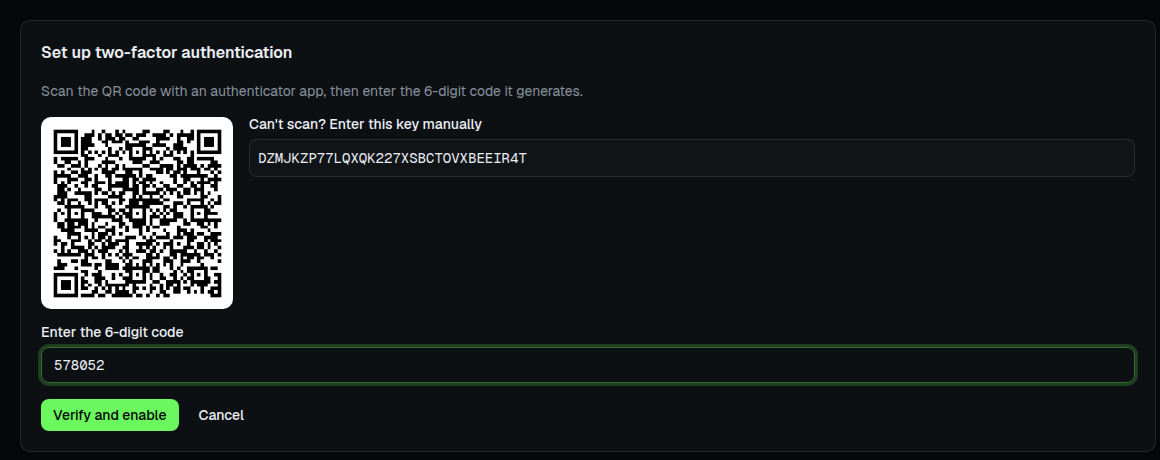
- Go to Settings → Security and choose Set up two-factor authentication.
- Scan the QR code with your authenticator app (or enter the displayed secret manually).
- Enter the 6-digit code your app generates to confirm the pairing.
Recovery codes
Confirming enrollment immediately shows 10 single-use recovery codes. Each is a short pair of letter/number groups (for example AB3XY-9KMNP). Store them somewhere safe — a password manager or printed copy — the same way you'd protect a password: anyone with a valid code can use it in place of your authenticator app.
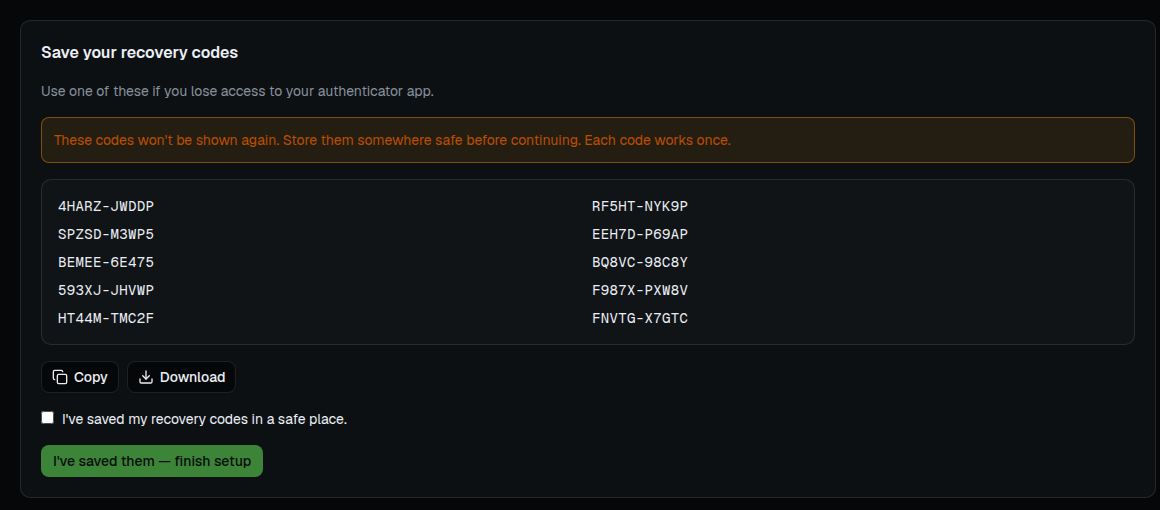
Each code works once. Settings → Security shows how many unused codes you have left and warns you when you're down to your last two — regenerate a fresh set of 10 from there at any time (regenerating invalidates every old code, so update wherever you'd stored them).
If you lose access to both your authenticator app and your recovery codes, contact support to regain access to your account.
Trusted devices
When you sign in with MFA, you can check Remember this device to skip the second-factor prompt on that browser for the next 14 days. This affects sign-in only — it never satisfies a step-up re-confirmation (below), so a trusted device still can't rotate a credential or open the billing portal without a fresh code.
Manage remembered devices from Settings → Security → Trusted devices: revoke any single device, or Revoke all devices to require the second factor everywhere immediately.
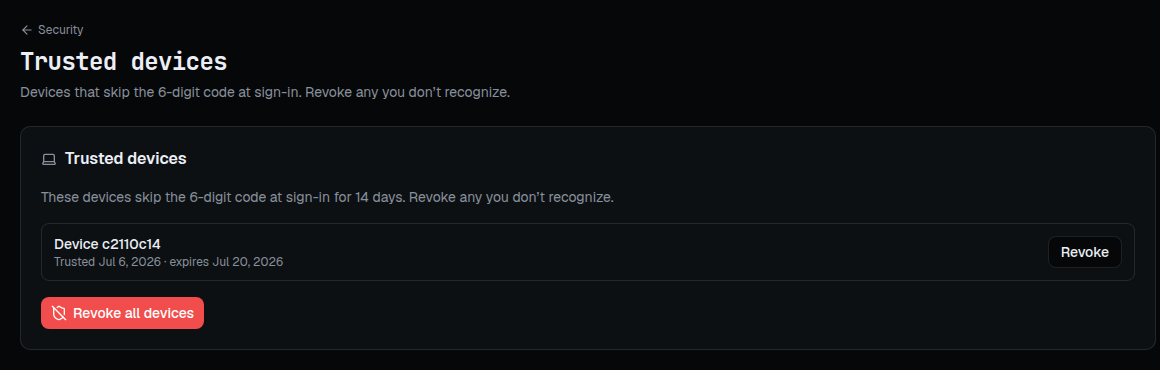
Disabling MFA clears every trusted device on your account. Changing your password or regenerating recovery codes signs out your other sessions, but doesn't revoke a remembered device — if you suspect one is compromised, revoke it explicitly from Trusted devices.
Step-up re-authentication
A handful of sensitive actions ask you to re-prove your identity even though you're already signed in — this is "step-up." It exists because a browser session that's been open for hours (sessions last up to 24 hours) shouldn't, on its own, be enough to rotate a credential, change your account details, or spend money. When a step-up-gated action needs a fresh confirmation, ADO Pilot shows a small dialog asking for a current 6-digit code from your authenticator app (if you have MFA enabled), your account password (if you sign in with a password), or a one-time code we email to your current address (if you sign in without a password — a magic link, an email code, or Sign in with Microsoft).
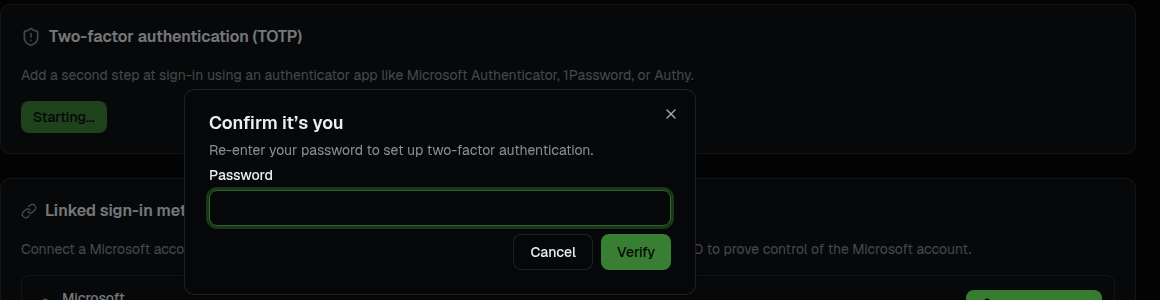
Confirming a step-up prompt authorizes any step-up-gated action in the same category (billing or security) for the rest of that short window — it doesn't extend or restart your overall 24-hour session. Actions that can ask for step-up include:
- Starting two-factor authentication setup
- Rotating your Azure DevOps personal access token
- Opening the Stripe billing portal, changing the overage cap, or converting/ending a plan
- Changing your account details
- Linking or unlinking a Microsoft sign-in
- Managing trusted devices
If you dismiss a step-up prompt, the action is simply cancelled — nothing is changed, and you can retry it whenever you're ready.
Changing your email
Your sign-in email is your account's recovery anchor, so changing it is a step-up-gated action, and the confirmation depends on how you sign in. If you have a password, you confirm with that password. If you sign in without one — a magic link, an email code, or Sign in with Microsoft — you don't need to add a password first: ADO Pilot emails a one-time code to your current address and you enter it to confirm. Either way, the change only takes effect after you prove control of the new address from a link we send there, and changing your canonical email signs out all of your existing sessions.