Creating a Personal Access Token
Step-by-step guide to create an Azure DevOps personal access token with the scopes ADO Pilot needs.
Last updated
To connect ADO Pilot to your Azure DevOps organization, you create a personal access token (PAT) in Azure DevOps with three specific scopes and paste it into the onboarding wizard. This page walks through the exact clicks.
When you need a PAT
You create a new PAT in two situations:
- First-time onboarding. The wizard's Connect to Azure DevOps step asks for one.
- Rotation or replacement. Every 90 days, or any time the previous token is compromised, expired, or owned by someone who has left the organization. See Rotating your PAT.
Required scopes
ADO Pilot needs the following Azure DevOps personal access token (PAT) scopes. Pick exactly these — do not grant Full access.
| Scope | Permission level | Why ADO Pilot needs it |
|---|---|---|
| Code | Read | Read pull request diffs and file contents; creates service hook subscriptions (inherited automatically — you will not see a separate "Service Hooks" option in the ADO UI). |
| Code | Status | Post status checks on pull requests (the AI PR Review badge). |
| Pull Request Threads | Read & write | Post inline review comments on the PR. |
ADO Pilot's onboarding wizard validates the Code (Read) scope at connection time for any organization with at least one Azure DevOps project (any organization you'd actually connect will have one), and the Pull Request Threads scope too whenever it has a pull request to test against: always true if you pasted a PR URL, and true for Skip for now only if the first project and repository the wizard checks already has an existing pull request (otherwise this check is deferred). The Code (Status) scope is not checked until ADO Pilot posts your first review's status check. A PAT missing any of the three scopes will fail at connection time (if checked there) or otherwise at first review, with a scope error — re-create the token with all three scopes selected if you see one.
Recommended settings
- Expiration: 90 days. Shorter is fine; longer is discouraged because Azure DevOps caps PATs at one year and rotating regularly limits the blast radius of a leak.
- Organization: the single Azure DevOps organization you want ADO Pilot to review. Do not pick All accessible organizations — ADO Pilot only needs access to one.
- Scopes: Custom defined, with the scopes listed above. Do not pick Full access.
Step-by-step
Step 1 — Open the personal access tokens page in Azure DevOps
In Azure DevOps, click your profile icon in the top-right corner and choose Personal access tokens. The direct URL is https://dev.azure.com/{your-org}/_usersSettings/tokens.
Step 2 — Create a new token
- Click New Token.
- Set Name to something recognizable, for example
ADO Pilot PR Review. - Set Organization to the org you want reviewed.
- Set Expiration (UTC) to 90 days from today.
- Under Scopes, click Custom defined and check the scopes from Required PAT scopes above.
- Click Create.
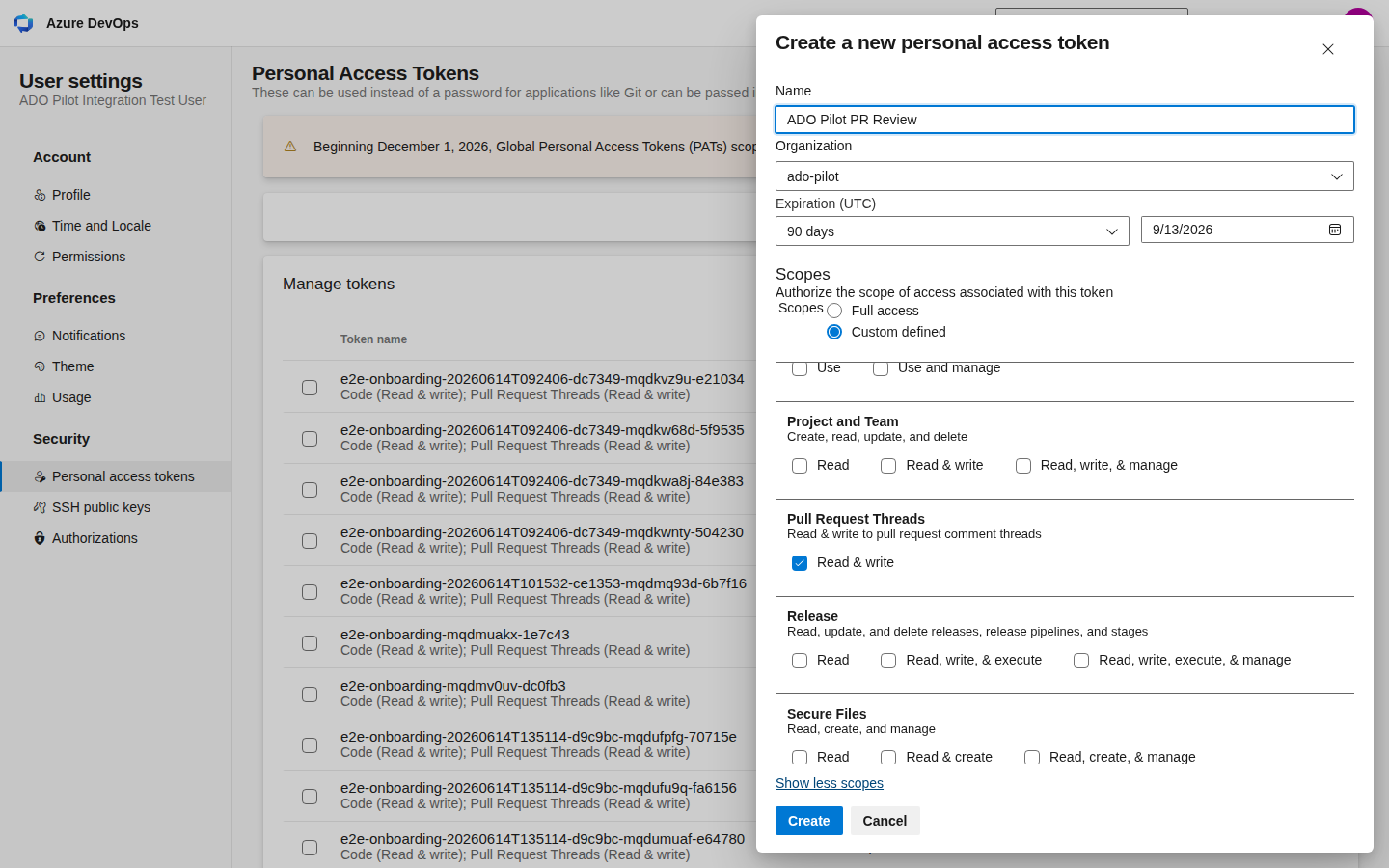
Step 3 — Copy the token immediately
Azure DevOps shows the token string exactly once. Click the Copy button next to it. If you close the dialog without copying, you have to delete the token and start over.
Step 4 — Paste it into the onboarding wizard
The wizard's Connect step has three numbered sub-steps. Work through them in order:
- Return to the ADO Pilot onboarding wizard at the Connect to Azure DevOps step and click Personal Access Token.
- Under Your first review (sub-step 1), choose one of the two options — this also establishes your organization so the next step can generate a direct link to your PAT settings:
- Run my first review now — paste an open pull request URL into the Pull Request URL field.
- Skip for now — type your organization name or URL into the Organization Name or URL field.
- Review the required scopes in sub-step 2. Once an organization or PR URL is entered, a Create PAT link appears — click it to open your Azure DevOps token settings page directly at the right URL.
- Paste the token into the Paste your token field (sub-step 3) — its placeholder reads Paste your PAT here until you do.
- Click Connect & Continue.
If the token is valid and has the required scopes, it advances to Step 3 of 5 — titled Your first review if you pasted a PR URL, or Configure repositories if you chose Skip for now. The wizard validates Code (Read) at this step, and Pull Request Threads too whenever it has a pull request to test against (always true if you pasted a PR URL; for Skip for now, only if the first project and repository the wizard checks already has an existing pull request). A missing-scope error for Code (Status) doesn't surface until ADO Pilot runs your first review and tries to post the status check.
What to do if validation fails
The wizard shows the specific scope validation error returned by Azure DevOps for each common failure:
- Organization not found. If you chose Skip for now and typed an organization name, the wizard checks it exists at
https://dev.azure.com/<org>. If it doesn't, you'll see a "couldn't find an Azure DevOps organization with that name" error and a persistent "Fix organization name →" banner. Correct the org slug (the segment right afterdev.azure.com/— not a project or repo name) and click Connect & Continue again. Seeorg_not_found. - Scope validation error. The token does not have one of the required scopes. This error can appear at validation (for Code or Pull Request Threads, when the wizard has a pull request to test against) or later, when ADO Pilot runs your first review and tries to post the status check (for Code Status). Delete the token in Azure DevOps and create a new one with all required scopes checked — see Required PAT scopes.
- Invalid or expired PAT. The token string is wrong or the expiration date has already passed. Confirm in Azure DevOps that the token still exists and is not expired, then create a new one if needed.
- Internal error: discovery state missing. Please retry validation. A transient backend hiccup. Click Connect & Continue again. If it persists, open a support request.
- Dashboard shows a service-hook permission error (not a scope error). This is a different failure from the scope errors above: the token's scopes are fine, but the Azure DevOps user the token belongs to lacks the Project Administrator role on the affected projects (or the equivalent project-scoped Edit/View Subscriptions grant on the Service Hooks namespace) needed to create the subscription that delivers pull-request events — an organization role, not a PAT scope. Azure DevOps checks this permission per project, so there is no single org-wide grant that covers every project. See Reviews never started: service-hook permission error.
For more help, see PAT scope errors.