Re-running a review
How to trigger a fresh ADO Pilot review — automatic on push, the PR action menu, the Settings Hub, or the dashboard.
Last updated
ADO Pilot runs a review automatically every time you push to an open PR. When you want a fresh review without a meaningful code change — for example, after fixing a transient error or tweaking review settings — you can push an empty commit, use the PR action menu, or trigger one from the Settings Hub.
Automatic — review on push
The default setting reviewOnPush: true makes every push to an open PR trigger a review:
- You push a commit (or open the PR for the first time).
- Azure DevOps fires a
git.pullrequest.createdorgit.pullrequest.updatedservice hook to ADO Pilot. - ADO Pilot queues a review against the latest commit.
- The tracking comment on the PR walks through queued → in progress → complete.
You do not need to click anything. Push and wait.
Manual — push an empty commit
When you want to re-run the review against an unchanged codebase — for example, after fixing a transient error or changing a review setting — push an empty commit:
git commit --allow-empty -m "trigger ADO Pilot review"
git push
This is the right approach when:
- The previous review errored (
PROVIDER_RATE_LIMITED, transient model failure) and you want to retry without producing a substantive code change. - You changed an exclusion pattern or a review setting and want to see the effect on this PR.
Manual — PR action menu
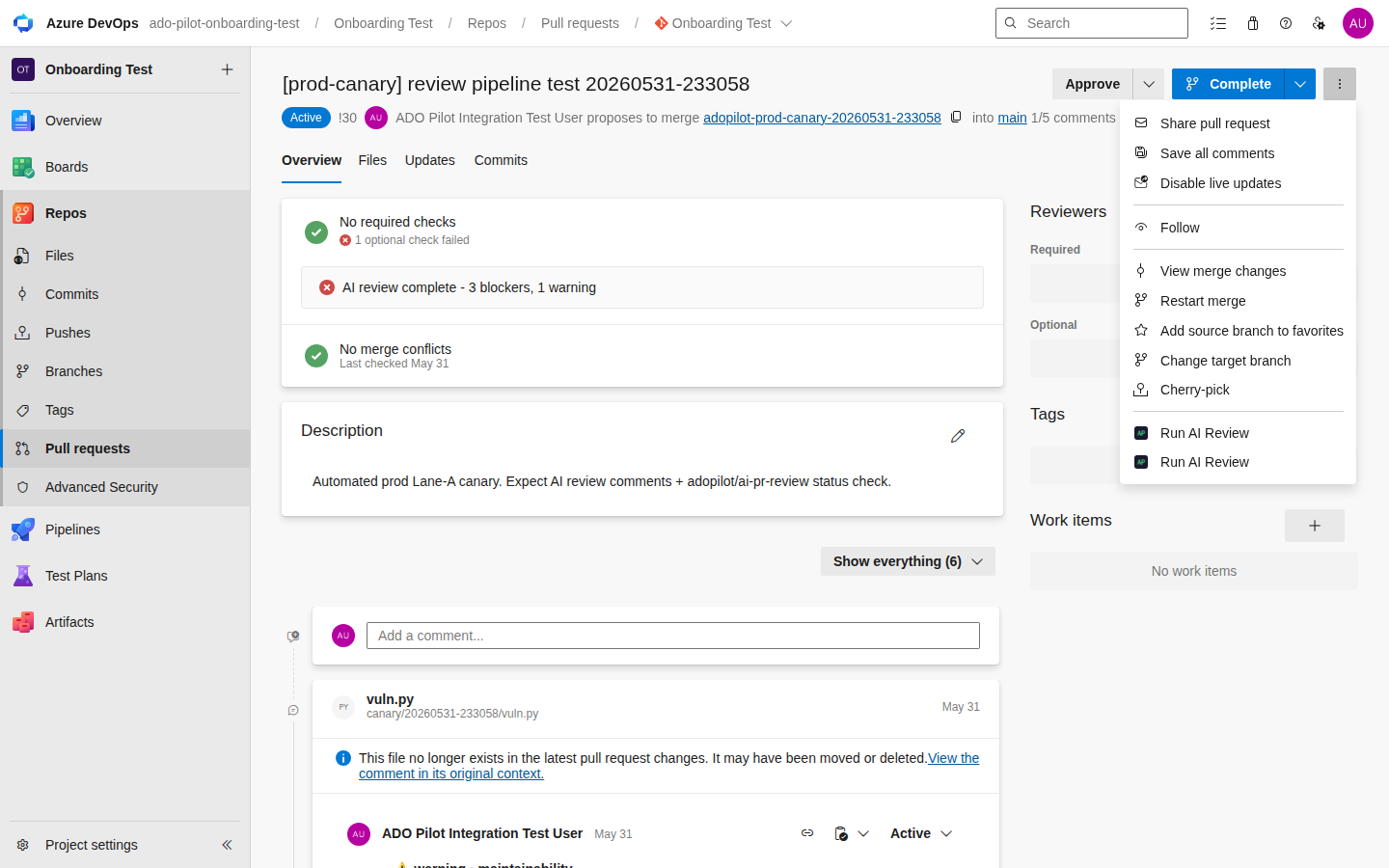
When the ADO Pilot extension is installed, a Run AI Review entry appears in the three-dot overflow menu on any pull request (the same menu that hosts Mark as draft and Abandon).
Selecting it opens a confirmation dialog:
Run an AI review of pull request #123 now?
Click Run review to start the review. Click Cancel to dismiss without doing anything. After clicking Run review, the dialog settles on one of these outcomes:
- Review started — the review is now queued; inline comments and the status check post in a few minutes.
- Review already in progress — if you click again within the same dialog session, the duplicate is collapsed server-side and you are not charged again. A deliberate re-run (a fresh dialog, or a new push) starts a new review and consumes review credits.
- Too many review requests — you're triggering reviews too quickly for this PR. Wait a moment and try again; there's no Try again button here, since an immediate retry would just hit the same limit.
- Review credits exhausted — your org has used its review allowance for this period. A Manage your plan at adopilot.dev link appears for a billing owner to top up or change the plan.
- Couldn't authorize the review — ADO Pilot could not confirm you have access to this PR. Use Try again after verifying you are signed in with access to the PR.
- Finish setting up ADO Pilot — this organization hasn't completed onboarding yet, so there is no ADO Pilot account to review against. A Sign up at adopilot.dev link starts signup; no credit is used.
- Your plan doesn't include this — on-demand reviews via a service principal need a higher plan for this organization. A Manage your plan at adopilot.dev link appears so a billing owner can upgrade.
- This organization is inactive — AI reviews are turned off for this organization. A Manage your plan at adopilot.dev link lets you check subscription status and reactivate them.
- Manual reviews are paused — an administrator has temporarily disabled on-demand reviews. Automatic reviews still run on every push.
- Something went wrong — a transient problem. Use Try again in a moment.
Opening the dialog costs nothing. Only clicking Run review spends review credits (one per ≈500 billable diff lines, one-credit minimum).
Manual — Settings Hub
Any organization member can also trigger a review from the Settings Hub: Organization Settings → ADO Pilot.
The hub shows a Run a review form when the org status is Active. Paste a full pull request URL (for example, https://dev.azure.com/org/project/_git/repo/pullrequest/123) and click Run AI review now. The form shows the same result messages as the PR action menu dialog above, plus a few URL-specific errors if the pasted URL is malformed, points at a repository you don't have access to, or its organization can't be determined.
The Settings Hub is useful when you want to kick off a review for any PR across your org without navigating to that PR first.
Manual — retry from the dashboard
Every review has a detail page in the dashboard at https://app.adopilot.dev/dashboard/reviews/{reviewId}. Failed reviews show the error and a message directing you to retry the PR. There is no one-click re-queue button on the review detail page — use the PR action menu or push an empty commit to re-trigger.
You will use the dashboard review detail path when:
- You found the original review through a search or notification rather than from the PR itself.
- The PR has scrolled past your immediate workflow but you want to re-examine why the review failed.
Successful reviews (PASS, ADVISORY, FAIL) do not need a retry — there is nothing to re-queue. To run a fresh review on the same PR, push a new commit (or an empty one).
Disabling automatic reviews
If you prefer to control timing yourself — for example, your team batches changes and only wants a review on the final commit — turn reviewOnPush off:
- In the dashboard at
app.adopilot.dev, go to Repositories. - Find the repo and toggle Review on push to off.
- Save.
With reviewOnPush disabled:
- Pushes no longer trigger reviews. The webhook still arrives at ADO Pilot, but the review is skipped — no review record is created for a skipped push, and it doesn't count against your plan.
- To get a review, use a manual trigger instead: the Run AI Review PR action menu or the Settings Hub Run a review form. Both run on the manual lane and bypass
reviewOnPush, so they review the PR even with automatic push reviews off. - The dashboard review detail page still shows any reviews that did run before the setting changed — use the PR action menu or Settings Hub above to start a new one.
This setting is per repo, so you can mix automatic and manual repos in the same org.